Code Menu
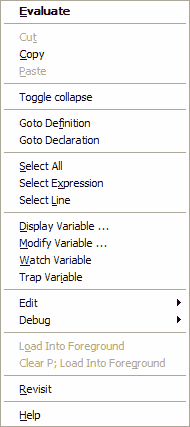
The default in this case is Evaluate so you can click again or press RETURN to get the same effect as the old right double click. The options on the menu are:
| Evaluate |
This will display the value of the variable or expression in the Evaluate Window (in LIST DIM format for variable). This is usually the default so you can click again or press RETURN to get the same effect as the old right double click. |
|
| Cut | Cut current text selection into clipboard. |
|---|
| Copy | Copy current text selection into clipboard. |
|---|
| Paste | Paste the data currently in clipboard. |
|---|
|
| Toggle collapse | Toggle the collapsed state of current statement or it the current statement isn't collapsible its parent. |
|---|
|
| Goto definition | Goto user type definition. Use the text currently under the cursor as the context. |
|---|
| Goto declaration | Goto variable declaration. Use the text currently under the cursor as the context. |
|---|
|
| Select All | Select all the text in current file. |
|---|
| Select Expression | This will just select the expression displaying it in reverse. It has the same effect as F5. KCML will attempt to match the whole expression by looking for the closing bracket for functions like STR( |
|---|
| Select Line | This will select the whole statement (one line on the screen) containing the item you clicked. |
|---|
|
| Display Variable | For string variables only this will bring up the Display Variable window showing the contents of the string. This is particularly useful for large string variables. See Inspecting Variables |
|---|
| Modify Variable | This is only available for variables or expressions that are legal on the left hand side of LET statements. It displays a modify dialog box showing the current value and allowing a new value to be entered. If you OK this dialog the variable is modified and a line is written to the output window confirming it. |
|---|
| Watch Variable | Add the variable or expression to watch window. |
|---|
| Trap Variable | This will set a breakpoint on the variable. Execution will stop if the variable is modified. |
|---|
|
| Load into Foreground | |
|---|
| Clear P; Load into Foreground | |
|---|
|
| Revisit | If you have jumped to this part of the program as a result of actioning then this will return you to the previous location just like the F6 revisit key. |
|---|
|
| Help | This will display an appropriate help page if used with a KCML keyword. It can also display application help for DEFSUB functions if a suitable file has been registered. See the page on documentation for more information on how this works. |
|---|
Code Sub-Menu
|
| Collapse Statements |
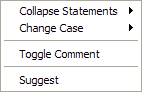
Collapse Statements. |
| Change Case |
Change the case of the selected text. |
| Toggle Comments |
Toggle wether the currently selected lines are commented out or not. |
| Suggest |
This brings up a suggestions popup menu containing variables that have the same stem as the selected variable, allowing auto-completion. You can also trigger this with ALT-DOWN |
Debug Sub-Menu
| Set Program to Cursor Line |
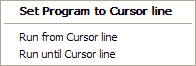
Set PC to cursor line. |
| Run from Cursor Line |
This will attempt to run the program from the mouse position. This will perform some checks to see if the program is in a safe state to run from hear. |
| Run until Cursor Line |
This will run the program until it finishes or execution reaches the cursor line, where it will stop. |
Context Menus