This dialog allows the colors and fonts used in the editor and debugger to be changed.
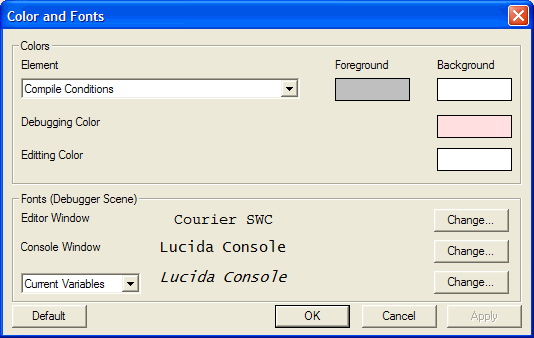
The Color and Font dialog only acts upon the current scene. This way you can have a different configuration for each scene.
You can revert to the original factory default colors and fonts by clicking the Default button.
Changing Colors
To change or pick a color you will need to double-click on the respective colored rectangle. This will present the standard Choose Color window.
Element Color
The combo-box drop down provides you with a list of elements that you can configure. You can set the foreground and background colour for each. This allows you to configure the colors for REM statements, DEFSUB lines, etc.
Debugging Color
This is the color that the Editor window's background will be when in debug mode.
Editing Color
This is the color that the Editor window's background will be when in edit mode.
Changing Fonts
By using the respective 'Change...' button you will be presented with a standard Choose Font window.
Editor Window
Configure the font for use in all source file windows.
Console Window
Configure the font for use in the Console window.
Other Window
Use the combo-box drop down to configure the fonts for other windows.